Navigating_the_Daily_Trade_Summaries_and_Analytics_Directly_on_the_Homepage_of_the_Hub
Navigating the Daily Trade Summaries and Analytics Directly on the Homepage of the Hub
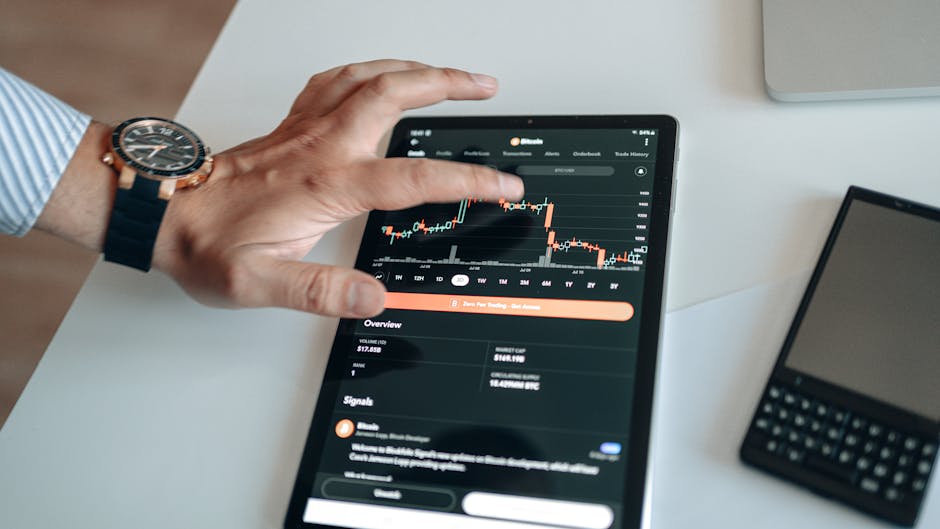
Why the Homepage Matters for Daily Trade Data
Most trading platforms bury performance data deep inside dashboards or export menus. The Hub changes this by placing daily trade summaries and live analytics directly on the homepage. This design eliminates the need to click through multiple tabs to understand your position. Instead, you get a consolidated view of executed trades, volume changes, and win/loss ratios the moment you log in.
The homepage layout prioritizes speed. Key metrics such as total daily volume, average trade size, and net profit are displayed in dedicated widgets. These widgets refresh automatically, pulling data from exchange APIs in near real-time. For a trader managing multiple assets, this means you can assess market exposure without switching contexts.
Widgets That Matter: Volume, P&L, and Active Positions
The top row of the homepage typically contains three core widgets. The first shows cumulative trade volume for the current session, broken down by asset class. The second displays a real-time profit and loss (P&L) bar, color-coded green or red. The third lists active positions with entry price, current price, and time held. Each widget is clickable, allowing you to drill into specific trades without leaving the page.
Interpreting the Analytics Dashboard
Below the summary widgets, the analytics section provides deeper insights. Here you find charts tracking win rate over time, average holding period, and risk-reward ratios. The data is segmented by day, week, and month, so you can spot trends in your own trading behavior. For example, a declining win rate over three days might indicate a need to adjust stop-loss levels.
One useful feature is the “Trade Distribution” heat map. It shows which hours of the day produce the most profitable trades. You can overlay this with volatility data from major pairs. This helps you decide whether to trade during high-liquidity windows or avoid certain time slots. All visualizations are interactive; hovering over a data point reveals exact numbers.
Customizing Your View with Filters
The homepage allows you to filter analytics by asset, trade direction (long/short), or broker. These filters persist across sessions. For instance, if you only want to see crypto trades from Binance, you set the filter once. The next time you visit the homepage, the analytics automatically apply that filter. This saves time and reduces cognitive load, especially for traders who run multiple strategies simultaneously.
Practical Workflow: From Summary to Decision
A typical session starts with a quick glance at the homepage summary. If the P&L widget shows an unusual drawdown, you click the “Active Positions” widget to review open trades. From there, you can close a position directly or adjust trailing stops. The analytics section then updates the win rate chart in real time, reflecting the change.
Another workflow involves using the daily trade summary to prepare for the next session. You review the “Average Trade Size” metric to ensure you are not over-leveraging. If the data shows a spike in trade size during volatile hours, you might set a maximum position limit. The homepage thus becomes a command center for both retrospective analysis and forward planning.
FAQ:
How often do the daily trade summaries refresh on the homepage?
They refresh every 30 seconds by default, but you can adjust the interval in settings to match your broker’s update speed.
Can I export the analytics data from the homepage?
Yes, each widget has an export button that downloads the data as a CSV file, preserving filters you have applied.
Does the homepage show data from multiple exchange accounts simultaneously?
Yes, as long as you have linked the accounts in the Hub settings. The summary aggregates all trades, while filters let you isolate a specific account.
What happens to the analytics if I close a trade mid-session?
The P&L and win rate widgets update instantly. The historical chart retains the closed trade data for the session, so you can review it later.
Reviews
Marcus T.
I used to jump between three tabs to see my daily performance. Now I just open the homepage. The P&L widget alone saves me ten minutes each morning.
Linda K.
The trade distribution heat map helped me realize I was losing money during the Asian session. I adjusted my hours and my win rate went up by 8% in a week.
Raj P.
Filtering by asset class is a game-changer. I run separate strategies for forex and crypto, and the homepage keeps them cleanly separated without extra work.
Leave a Reply